

All FAQs
Studio One
There are a few different ways to do this and few key steps.
Start by making a Copy of your Project so you make sure it’s saved as a package, and also so you can leave the current version on the computer you’re working on as a backup.
- Go to File > Save a Copy As
- Save as a package (not a folder)
- Name the file with “[Song Title] – for mix”
- Close the original project
From the Finder, find the [Song Title] – for mix Logic project file. This is the file you can share by AirDrop, the Network Drive (blue globe on the Dock), or Google Drive.
Advanced Level
If you want to take a look at a full professional approach to sharing a Logic project with another engineer. Check out this video:
Mac
This is typically a polarity issue — in other woeds, the pedal is sending the wrong MIDI data values (e.g., 0 when pressed, 127 when released when Logic is expecting the opposite).
Here’s a good video that covers it, or if you’d prefer to read below:
How do I fix sustain pedal polarity in Logic Pro?
Use the Environment window to reverse the MIDI data:
- Open Logic Pro and press Command + 0 to open the Environment.
- Create a Transformer object.
- Route it like this: Sum → Transformer → Input Notes → Sequencer Input
- Set the Transformer to filter or remap MIDI CC 64 values (sustain) to reverse the behavior.
Here’s some additional information
Q: What MIDI message is used for sustain?
MIDI Control Change CC64 is used for sustain pedal data.
Q: Are there other fixes?
- Check your pedal or keyboard for a polarity switch.
- Try software modifiers or consult community forums for device-specific tips.
Q: Any tips to avoid this in the future?
- Test pedals in multiple apps.
- Know your controller’s MIDI implementation.
- Learn to use Logic’s Environment for advanced troubleshooting.
Projects
There are a few different ways to do this and few key steps.
Start by making a Copy of your Project so you make sure it’s saved as a package, and also so you can leave the current version on the computer you’re working on as a backup.
- Go to File > Save a Copy As
- Save as a package (not a folder)
- Name the file with “[Song Title] – for mix”
- Close the original project
From the Finder, find the [Song Title] – for mix Logic project file. This is the file you can share by AirDrop, the Network Drive (blue globe on the Dock), or Google Drive.
Advanced Level
If you want to take a look at a full professional approach to sharing a Logic project with another engineer. Check out this video:
Audio
You probably haven’t lost your project, and I would guess that Logic is open, just not the main workspace. Luckily, that is an easy fix.
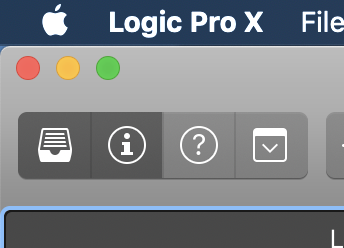
First, make sure Logic is the active application (see Fig. 1) by looking for “Logic” in the upper left-hand corner of your screen.
You have two options: (1) you can either use the keyboard shortcut Command-1
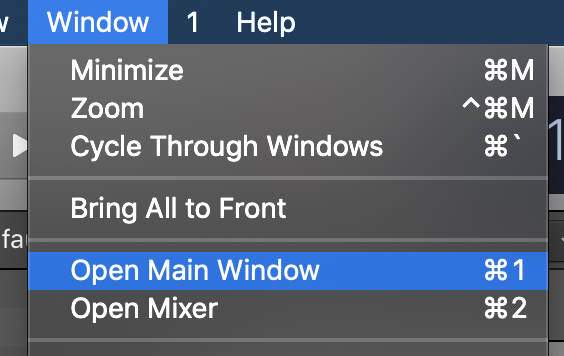
Or, (2) select Window > Open Main Window (Fig. 2) from the drop-down menu
There are a few different ways to do this and few key steps.
Start by making a Copy of your Project so you make sure it’s saved as a package, and also so you can leave the current version on the computer you’re working on as a backup.
- Go to File > Save a Copy As
- Save as a package (not a folder)
- Name the file with “[Song Title] – for mix”
- Close the original project
From the Finder, find the [Song Title] – for mix Logic project file. This is the file you can share by AirDrop, the Network Drive (blue globe on the Dock), or Google Drive.
Advanced Level
If you want to take a look at a full professional approach to sharing a Logic project with another engineer. Check out this video:
If your instruments sound out of tune or are sliding randomly, Logic is sending and/or receiving unnecessary Pitch Bend data from your MIDI controller. I used to think this was a problem attributed to our older MIDI controllers, but it seems like Logic itself might be the culprit.
Here is a fix, but it does end up disabling your Pitch Bend, so if you do need pitch bend, you’ll need to do only step 2 and then keep your fingers crossed that the fix stays.
If you don’t need pitch bend at all, you can fix this problem by filtering the input and resetting the automation.
Step 1: Filter Pitch Bend Input
If you want to stop your keyboard from sending pitch bend data entirely:
- Navigate to File > Project Settings > MIDI.
- Click on the Input Filter tab.
- Check the box for Pitch Bend.
Note: This will disable the pitch wheel on your hardware for this specific project.
Step 2: Reset the Pitch Bend Value to Zero
If your track is still out of tune after filtering the input, there is likely a “stuck” MIDI event on the timeline.
- Select the affected track.
- Press Command (⌘) + Control (^) + E to open the Automation Events Editor.
- Locate the Pitch Bend column or information.
- Set the value back to 0 to restore the track to its natural pitch.
This is typically a polarity issue — in other woeds, the pedal is sending the wrong MIDI data values (e.g., 0 when pressed, 127 when released when Logic is expecting the opposite).
Here’s a good video that covers it, or if you’d prefer to read below:
How do I fix sustain pedal polarity in Logic Pro?
Use the Environment window to reverse the MIDI data:
- Open Logic Pro and press Command + 0 to open the Environment.
- Create a Transformer object.
- Route it like this: Sum → Transformer → Input Notes → Sequencer Input
- Set the Transformer to filter or remap MIDI CC 64 values (sustain) to reverse the behavior.
Here’s some additional information
Q: What MIDI message is used for sustain?
MIDI Control Change CC64 is used for sustain pedal data.
Q: Are there other fixes?
- Check your pedal or keyboard for a polarity switch.
- Try software modifiers or consult community forums for device-specific tips.
Q: Any tips to avoid this in the future?
- Test pedals in multiple apps.
- Know your controller’s MIDI implementation.
- Learn to use Logic’s Environment for advanced troubleshooting.