
Category:
Mac
AI Use/Attribution: I had an existing FAQ for this persistent problem, but I asked Gemini to create a more detailed FAQ. I edited the results and integrated them into the existing screenshots. I am responsible for the final content. My prompt to Gemini (edited for clarity) was: Our district restricts YouTube for most students. My class has permission to access YouTube videos, but we frequently run into problems. I have a current FAQ (copied below) and would like to expand it since we’re still having problems. What are we missing? Can you please expand this FAQ.
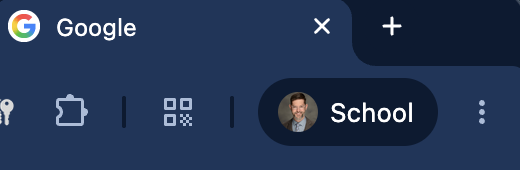
Verify Chrome Profile & Sync
- Look at the top-right corner of Chrome (next to the address bar). Make sure your school Google account icon is displayed.
- Click your account icon and check Sync:
If it says “Sync is paused” or “Turn on sync”, click it and log back into your@lsr7.netaccount.
If prompted to “Link Data”, select Link Data. - Click “Manage People” (see below). If you see multiple profiles (e.g., “Person 1” or a generic profile icon), click the profile icon, select your official LSR7 profile, and delete the other profile window.

Sign in to YouTube
- Go to youtube.com.
- Look at the top-right corner. If you see a “Sign In” button, click it and log in using your LSR7 student email and password.
- If you see an avatar icon, click it to verify it is your school address and not a personal account.
Check Securly Web Filter Authentication
- Open a new tab and go to any standard website (like
google.comorsecurly.com). - If prompted by Securly, log in using your LSR7 student Google credentials.
- (Optional, I don’t have this!) Check the top-right corner of Chrome for the Securly Extension icon (a blue cluster/shield icon). Ensure it shows as active.
Hard Refresh & Restart Browser
- Return to the Quest page.
- Force a hard refresh:
PressCommand + Shift + R - If it still fails, completely quit Chrome (
Command + Q) and re-open it.
More Aggressive Troubleshooting:
Clear Cookies & Cached Web Data
- In Chrome, press
Command + Shift + Delete. - Set the Time Range to All Time.
- Check Cookies and other site data and Cached images and files.
- Click Clear data, then restart Chrome.
Reset Chrome Profiles (Fresh Start)
- Click your profile icon in the top-right corner of Chrome and select the Gear Icon (Manage Profiles / Manage People).
- Find any incomplete or extra profiles, click the three dots (…) on the profile card, and click Delete / Remove.
- Sign out of your main profile, restart Chrome, and log back in, ensuring you enable Sync and Link Data.